
You put your iPhone on silent. You turned on a Focus. Nothing buzzes. And ten minutes into the report, your thumb opens Instagram anyway, because the next paragraph got hard and the feed is always easy.
That is the part most “phone distraction” advice misses. Silencing your phone deals with what comes to you. It does nothing about what you go looking for. To actually get through a piece of work on an iPhone, you need a boundary for both.
Two ways your phone pulls you away
Incoming interruptions are notifications, calls, and badges. They arrive on someone else’s schedule. In a 2015 lab experiment, people who merely received a call or text notification during an attention-demanding task made more errors, even though they never picked up the phone.1 So quieting notifications is worth doing.
Self-initiated checking is different. Nobody called you. You reached for the phone because the work became uncomfortable, boring, or unclear. A Focus that filters notifications doesn’t stop this, because opening an app is your own action, and iOS lets you do it.
The fix is two steps: quiet what comes in, then put a boundary around the apps you tend to open yourself, for as long as one specific task takes.
Step 1: Quiet the incoming with an iPhone Focus
Apple’s Focus feature lets you choose which people and apps can notify you while it’s on.2 If you don’t already have one for work or study:
- Open Settings and tap Focus.
- Tap + and choose Work, Study, or Custom.
- Under allowed notifications, add the people who genuinely need to reach you, like family, your manager, or a childcare contact, and only the apps your work depends on.
- Optionally, set it to turn on automatically at a time or place, or turn it on from Control Center when you sit down.
Menu names shift a little between iOS versions, but the idea stays the same. Keep the allowed list short. Every app on it is another way back into your phone.
Step 2: Name one task with a clear finish line
Before you block anything, decide what you’re protecting. “Work on the report” has no end, so there’s never a clear moment when you’re done and allowed to check your phone. You stay half-working and half-tempted for hours.
Shrink it to something you could finish in one sitting and recognise as done:
| Vague intention | Task with a finish line |
|---|---|
| Work on the report | Write the three bullet points for section two |
| Study for biology | Answer the practice questions for chapter 4 |
| Deal with email | Reply to the two client emails from Monday |
| Sort out the taxes | Find last year’s return and download this year’s form |
If you can’t say what “done” looks like, the task is still too big. Our guide on how to start a task you keep putting off goes deeper on making that first step concrete.
Step 3: Put a boundary around the apps you open yourself
iOS gives you a few ways to limit apps, and each ends at a different moment. Pick the one that matches the boundary you actually want.
| Option | What it limits | When it ends | Good for |
|---|---|---|---|
| Focus | Notifications from chosen people and apps | When you or the schedule turn it off | Stopping incoming interruptions |
| Screen Time App Limits | Daily time in chosen apps or categories | When the daily allowance runs out, until it resets | Capping total use across a day |
| Screen Time Downtime | Most apps during a scheduled window | At the end of the schedule | Evenings and bedtime |
| Task-based blocker | Apps, categories, or sites you choose | When you mark the task done | Getting one piece of work finished |
App Limits and Downtime are useful, and if they already work for you, keep them. But they’re tied to the clock, not to your work. A daily limit doesn’t care whether you’re in the middle of a hard paragraph, and a schedule can end while you’re still halfway through.
A task-based boundary lines up with the work itself: the apps stay paused while the task is open and come back when it’s finished. That is the idea Task Focus is built around.
How to set it up in Task Focus
Task Focus is a free iPhone app that pauses the apps you choose until your task is done. It uses Apple’s Screen Time framework, so the first time you turn on app pausing, iOS asks you to allow Screen Time access.
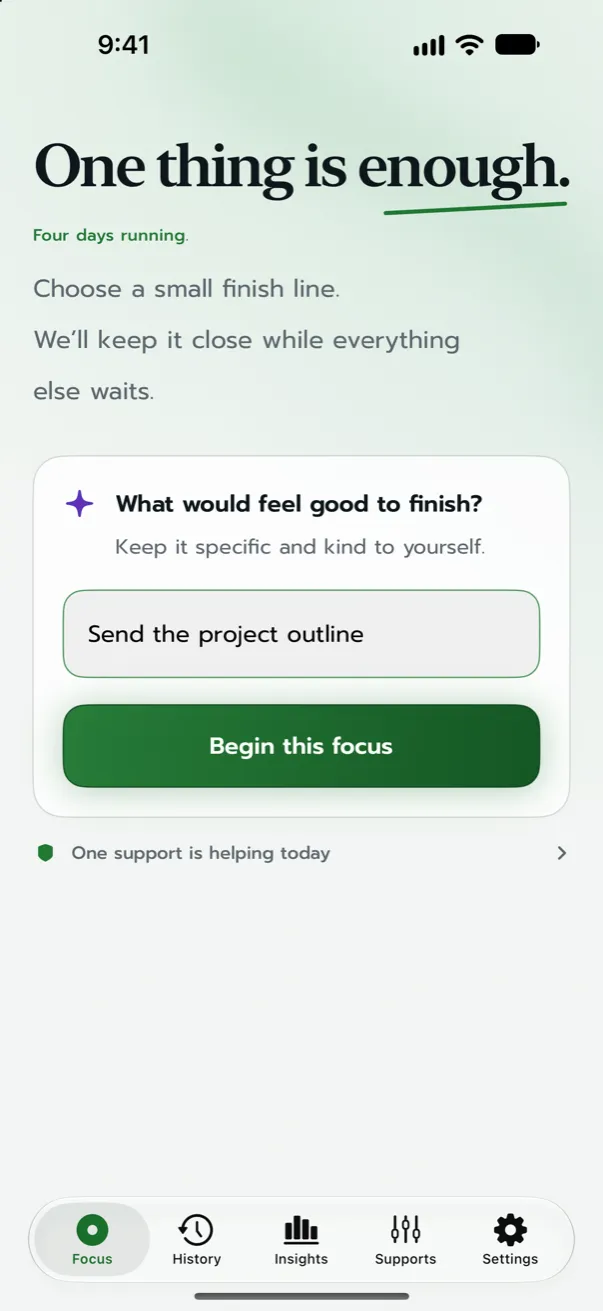
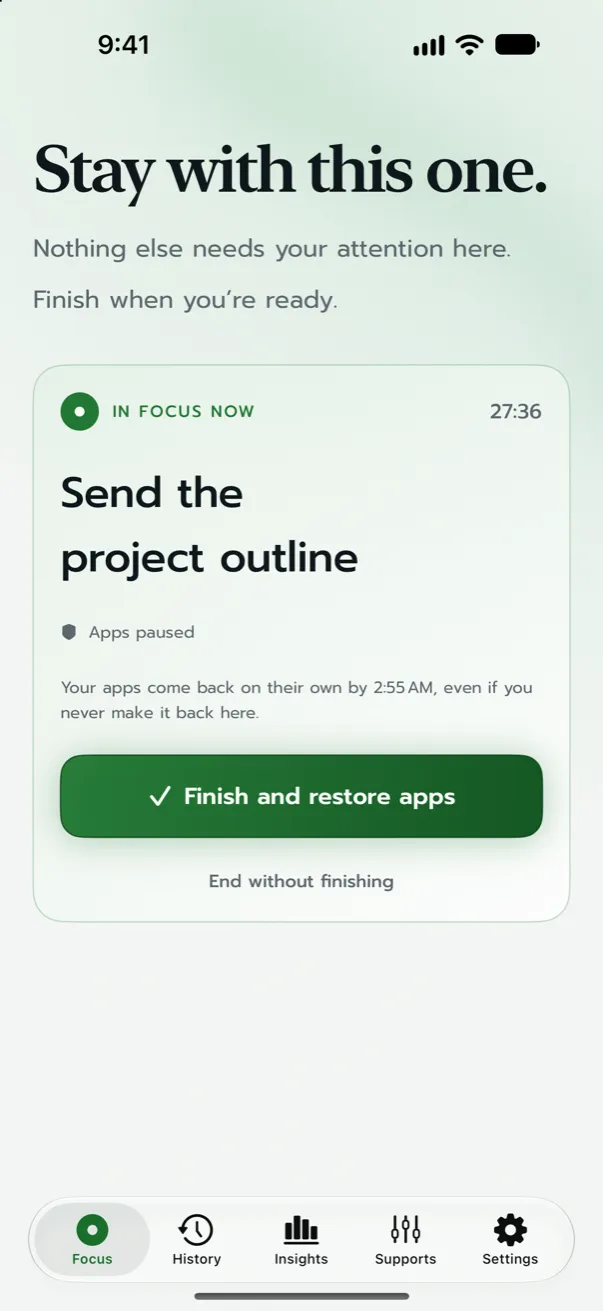
- Write the task. Type the finish line from Step 2, for example “Send the project outline.”
- Choose what to pause. Turn on Pause distracting apps and pick the apps, categories, or websites that usually pull you away.
- Begin. There’s no countdown to set. Time counts up, and your task stays visible on the Lock Screen.
- Work. If you open a paused app out of habit, you see your task instead of the feed, with a Back to it button.
- Finish. Tap Finish and restore apps. Everything comes back immediately.
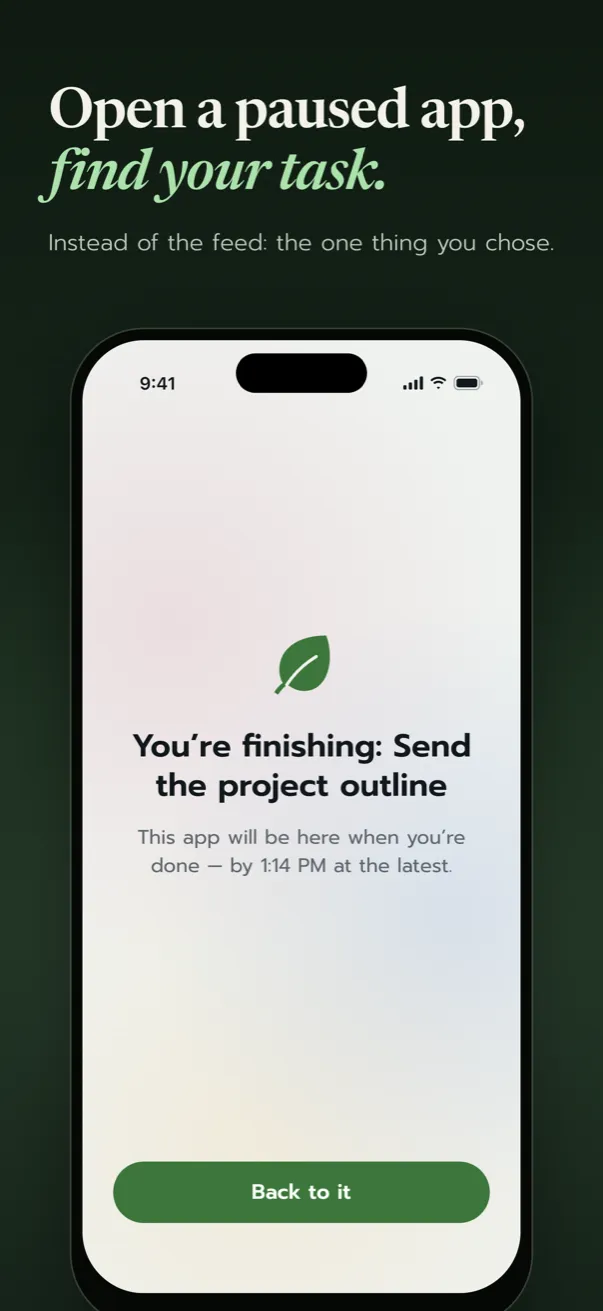
Two details make this safe to try. First, you set a safety limit of one, two, four, or eight hours, and your apps come back on their own at that point even if you never return to Task Focus. Second, you can always end a focus without finishing it, or switch app pausing off in Settings.
If you already use a Work or Study Focus from Step 1, you can add Task Focus as a Focus filter on it, so turning on that Focus also pauses the apps you chose.
Try it on three tasks before you decide
One good session tells you little. Instead, run a small experiment on yourself:
- Pick three similar tasks this week, such as three study sessions or three writing blocks.
- For each one, name the finish line and pause the same apps.
- Afterwards, jot down two things: how many times you reached for a paused app, and whether you finished the task.
If you keep hitting the paused screen for one particular app, that app was doing more of the distracting than you thought. If you rarely hit it at all, notifications may have been the bigger problem, and Step 1 is doing the heavy lifting.
What this won’t do
It’s worth being clear about the edges:
- Task Focus doesn’t silence notifications by itself. That’s the job of an iOS Focus, which is why Step 1 exists.
- It works on iPhone only, and needs iOS 17 or later.
- It can’t make a task easier. If you keep bouncing off the work, the task may be too big or unclear. Make it smaller rather than blocking harder.
- Blocking only helps if you choose the apps you actually open. Be honest with yourself here.
Frequently asked questions
Does iPhone Focus mode block apps?
Not in the sense of stopping you from opening them. A Focus filters notifications and can hide Home Screen pages, but you can still open any app through search or the App Library. To stop yourself opening an app, you need Screen Time limits or an app that uses Screen Time to pause it.
Can I block apps on iPhone without Screen Time?
Not reliably. Third-party app blockers on iPhone, including Task Focus, work through Apple’s Screen Time framework, which is why they ask for Screen Time access. Your choices of apps stay on your device as Apple-provided tokens.
Is Task Focus free?
Yes. Pausing apps is free and always will be, with no account and no subscription. Task Focus Pro is an optional one-time purchase that adds long-term history, insights, and extra profiles.
What if I need a paused app during the task?
You can end the focus at any time, with or without marking the task done. Choose your paused apps so that anything you genuinely need for the task, like a messaging app your team uses, stays available.