
Studying
Pause Instagram, TikTok, and YouTube until the chapter is read, not until a timer rings.
How to stop opening distracting appsTask Focus is a free iPhone app blocker. Write the one thing you want to finish, choose the apps that pull you away, and they stay paused until you mark it done. No countdown, no account, no subscription.
The phone shows what you’d see if you opened a paused app. Nothing you type leaves this page.
 On a computer?
You’re finishing:
This app will be here when you’re done — by 1:14 PM at the latest.
Open a paused app mid-taskand you find your task instead of the feed.
Three steps, and the last one is yours to take whenever the work is actually done.
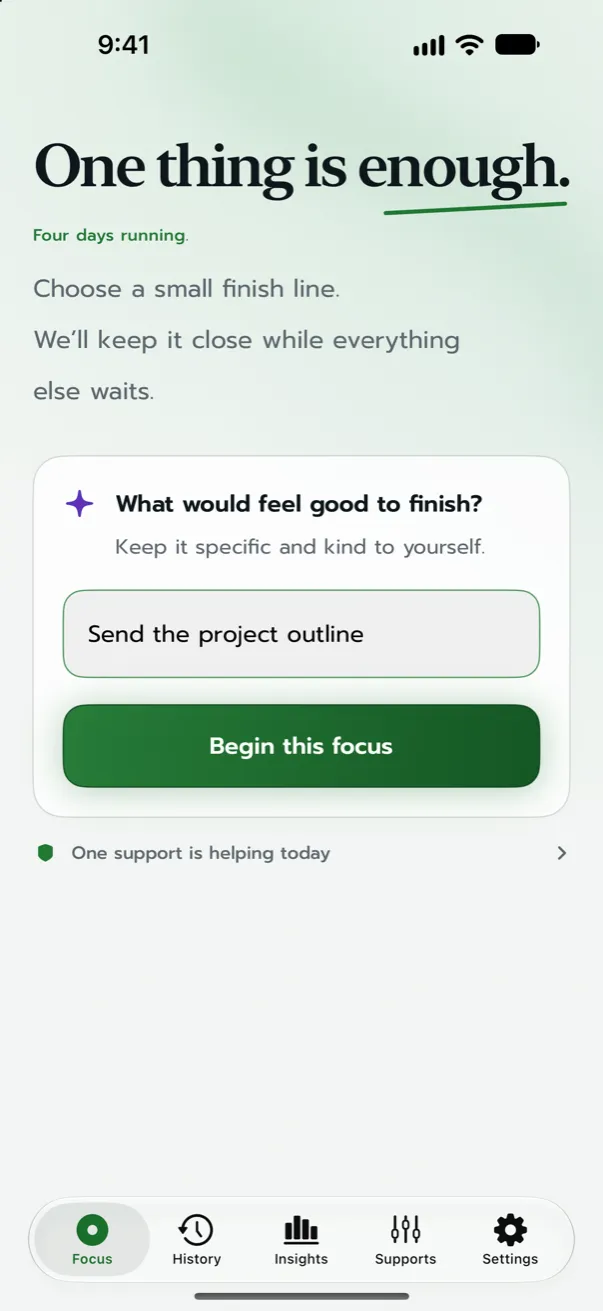
Write the one thing you want to finish, like “Send the project outline.” No backlog, no project setup.
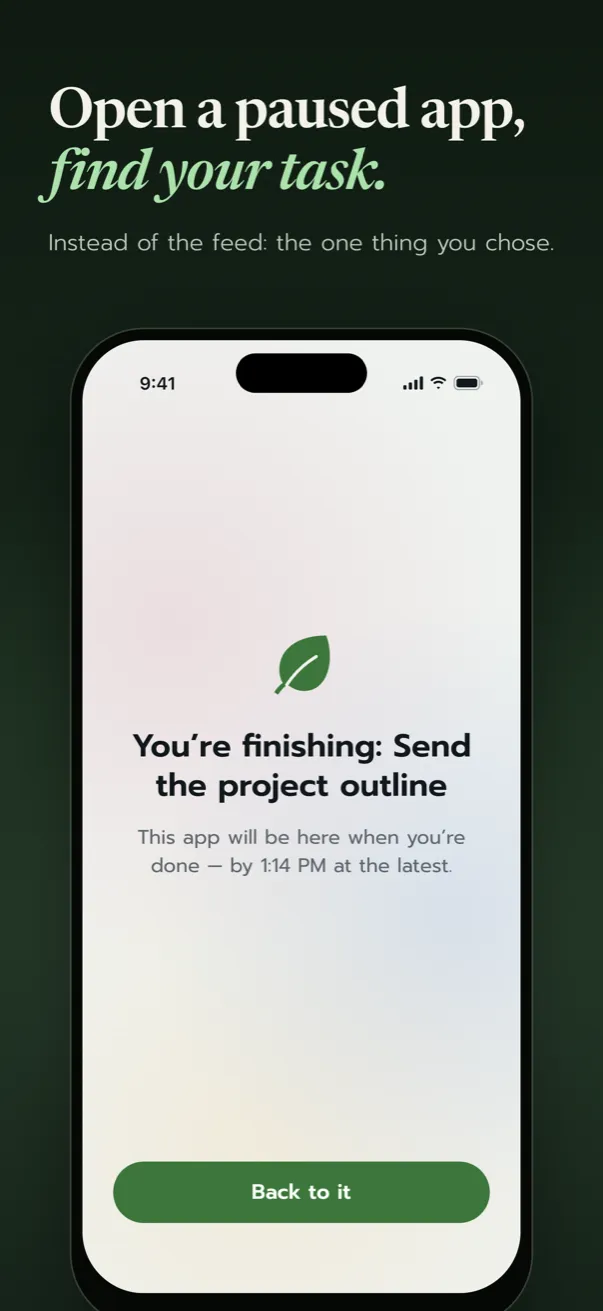
Choose apps, app categories, or websites. Open one mid-task and you see your task with a “Back to it” button.
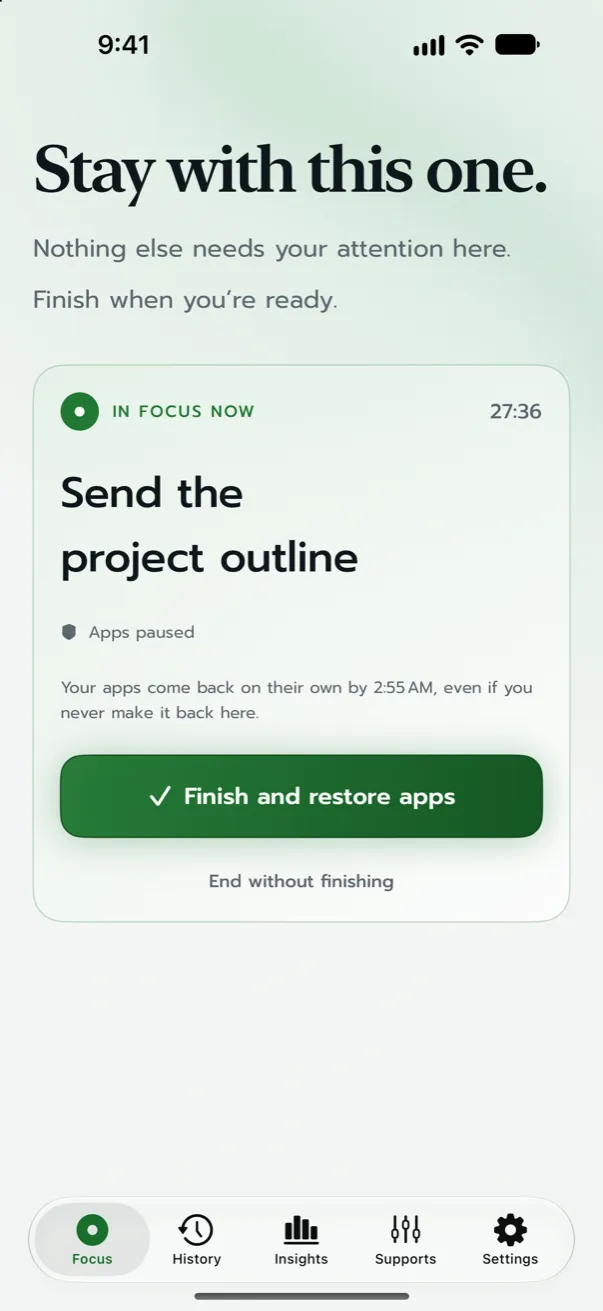
Time counts up, so no timer runs out on you. Tap “Finish and restore apps” when it’s done, and a safety limit returns them if you forget.
Most ways to block apps on iPhone end on a clock. Task Focus ends when the work does.
| Question | Task Focus | Pomodoro and timer blockers | Screen Time app limits |
|---|---|---|---|
| When do apps come back? | When you mark the task done, or after the safety limit you set (1, 2, 4, or 8 hours) | When the countdown ends, finished or not | When the daily limit resets, or when you tap Ignore Limit |
| Opening a blocked app shows | Your task and a “Back to it” button | Depends on the app, usually the timer | A “Time Limit” screen |
| Pressure | Time counts up. No countdown, no scores | A countdown to beat | A daily budget, not tied to a task |
| Price | Free blocking, optional one-time Pro | Varies, often a subscription | Free, built into iOS |
Screen Time limits suit a daily budget for an app. Task Focus is for the length of one task. Still deciding? Read Pomodoro or task-based focus: how to choose.
Your task and elapsed time stay visible without opening the app. Finish right from the Live Activity.
Choose 1, 2, 4, or 8 hours. If you never come back, your apps return on their own, even with Task Focus closed.
Pause apps automatically at the times you choose, such as weekday mornings, even with Task Focus closed.
Add Task Focus to a Work or Study Focus in iOS Settings. Your apps pause when that Focus turns on and come back when it ends.
Optional reminders every 5 minutes to 2 hours, at the interval you pick, bring you back to the task.
Task Focus notes the days you showed up, but a missed day takes nothing away, and your longest run is kept for good. No scores, no warnings.
Pause Instagram, TikTok, and YouTube until the chapter is read, not until a timer rings.
How to stop opening distracting appsName the deliverable, pause the feeds, and keep the task on your Lock Screen until it ships.
Why quick checks cost more than they seemOne task, no countdown to beat, and nothing taken away for a missed day. A focus tool, not a treatment.
How to start a task you keep putting offThere is no subscription. Blocking apps is free and always will be.
$0no time limit
$19.99once, no renewal
Try Pro for seven days. It opens by itself the first time you finish a task. Nothing to sign up for and nothing to cancel. US price shown; the App Store shows yours.
The apps you choose are Apple Screen Time tokens that never leave your iPhone and that the developer can’t read. Your tasks and history stay on your devices, syncing only through your own private iCloud, encrypted. The app sends anonymous usage counts, like “a focus was finished,” and you can switch them off.
Yes. Pausing apps is free and always will be, with unlimited focus sessions, no ads, no account, and no subscription. Task Focus Pro is an optional one-time purchase that adds your full searchable history, longer insights, short breaks, and more profiles and schedules. Compare Free and Pro.
Open Task Focus, write the one task you want to finish, turn on “Pause distracting apps,” and choose the apps, categories, or websites to pause. They stay paused until you tap “Finish and restore apps,” or until the safety limit you chose returns them. The step-by-step guide also covers pairing it with an iOS Focus.
Yes. App blockers on iPhone work through Apple’s Screen Time framework. Task Focus asks for it only when you choose apps to pause, and you can focus without pausing anything. Your app choices stay on your device as Apple-provided tokens.
Yes. You can end a focus at any time, with or without marking the task done. Task Focus is a gentle boundary, not a lock you can’t get out of.
No. Elapsed time counts up so you can see your effort, but nothing runs out. The focus ends when you say the task is finished. If you work better with a countdown, here’s how the two approaches compare.
Any iPhone with iOS 17 or later. On iPhones with a Dynamic Island, your task and elapsed time also appear there. Task Focus is not available for Android or Mac.
It was designed with ADHD in mind: one task at a time, no countdown to beat, and nothing taken away for a missed day. It is a focus tool, not a medical treatment.
No. Your app, category, and website choices are Apple-provided tokens that stay on your device. Task Focus does not collect your activity in other apps. More answers are on the support page.
Practical, sourced advice on starting, protecting, and finishing one task.
Quiet your iPhone with Focus, name one task, and pause the apps you open out of habit.
One ends on the clock, the other when the work is done. A fair comparison.
Turn a vague goal into a first action and a clear moment to begin.

Free on iPhone. No account, no subscription.